

Tools
Read the launch timeline
The launch timeline shows how your app starts. It answers three questions:
- Which step is the longest?
- Which steps delay the first frame?
- Which steps ran at the same time, and which waited in line?
You can open it in two places. In the app, tap the debugger button and open the Launch tool of app_debugger from the tool list. On your computer, use the Launch view of the Blackbox viewer. Both draw the same data: a LaunchTrace v1 recorded by the launch tracker.
What you need
- The
launch_tracker_sdkbrick. It records the trace. app_debugger(a recent version), orapp_blackbox_recorder2.0.0 or later. Install the tracker first, or generate the debugger or recorder again afterwards. This connects them.
Without the tracker, the tool and the viewer tell you what is missing.
The phases of a launch
A launch has five phases. Each starts when the one before it ends. Post-launch starts after the first frame.
| Phase | What happens | Blocks the first frame? |
|---|---|---|
| native | The OS starts the process, then native app init runs. Ends when the Flutter engine attaches. | Yes |
| engine | The Dart VM boots, main() runs, DI is set up. | Yes |
| pre_launch | Pre-launch initializers run. | Yes |
| first_frame | The first frame of app content is built. | Yes |
| post_launch | Post-launch initializers run. The app is already on screen. | No |
All times count from the start of the launch (the process start, or the launch request on Android 13 and later).
Blocking, parallel and queued
Every initializer is one bar. Each bar is one of these:
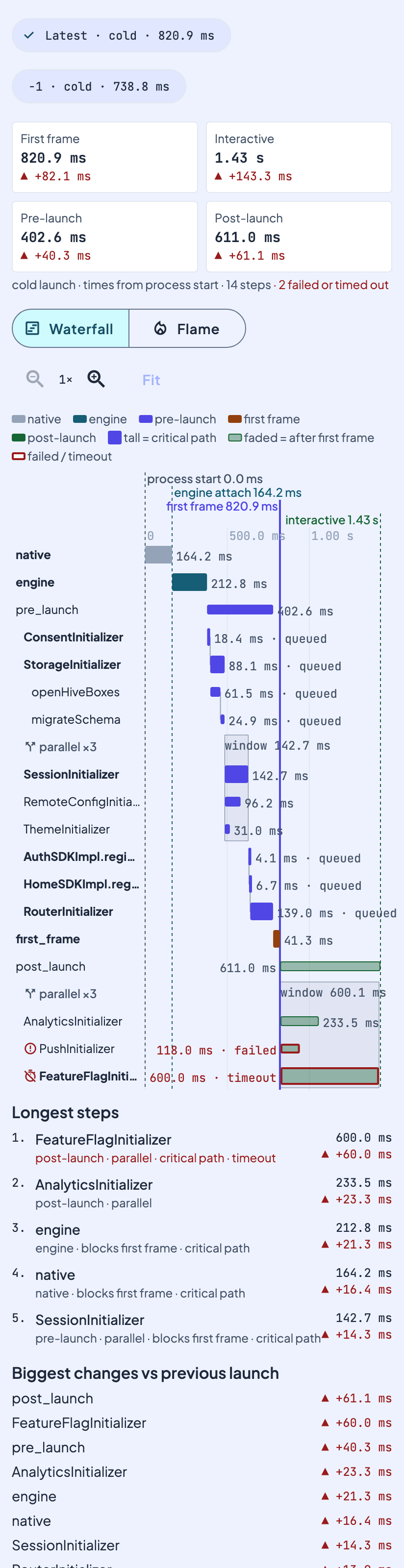
- Blocking. It runs before the first frame. The user waits for it. In the waterfall, these bars are solid.
- After the first frame. It runs in post-launch. The user does not wait for it. These bars are faded.
- Parallel. It runs inside a batch with other steps, at the same time. The batch has a "parallel xN" header and a shaded box. The batch takes as long as its slowest member.
- Queued. It ran alone, and it started only after the step before it ended. It is marked "queued". A thin line joins the end of one step to the start of the next.
A step can be blocking and parallel, or blocking and queued. The label tells you how it ran. The colour and fill tell you when.
The critical path
The critical path is the chain of steps that the launch actually waited for. The tool works it out backwards from the end. In a parallel batch, only the member that finished last is on the path.
This matters when you want a faster launch. Make a step on the critical path shorter, and the launch gets shorter. Make a step off the path shorter, and nothing changes. In the waterfall, critical-path bars are taller. In the Blackbox viewer, you can dim everything else.
The first-frame marker
The solid vertical line is the first frame: the moment your own content reaches the screen. Everything solid and to its left is time the user waits. Everything to its right is background work.
Do not confuse it with native_first_frame. That is when Flutter's first frame (often the loading UI) reaches the screen. first_frame is when the app content is built after pre-launch. The interactive line is later still: every startup step is done.
Native milestones
The tracker also records native milestones. They show as dashed vertical lines.
| Marker | Meaning |
|---|---|
process_start | The OS created the process. |
native_app_init_start and native_app_init_end | Native app init began and ended. |
engine_attach | The Flutter engine started and attached the tracker plugin. This is the end of engine creation. |
dart_main | main() started. |
native_splash_shown | The system splash screen became visible. |
native_splash_exit_start | The splash began to leave. On Android this is the same time as native_first_frame. |
native_splash_exit_end | The splash is gone (iOS only). |
The system draws the splash, so the app cannot time it exactly. On Android 13 and later, the splash starts at the launch request. On older Android and on iOS, it starts at the process start. A warm launch has no process milestones, because the process already existed. Read Native Timing for the full table per platform.
Waterfall and flame view
Waterfall is the default. It has one row per step, at its real start and length, all on one time axis. Use it to see order, overlap, waiting and the first-frame line.
Flame puts phases on the top row, initializers below them, and sub-steps below those. Width is duration. Use it to find which sub-step makes an initializer slow. Tap a node to zoom into it.
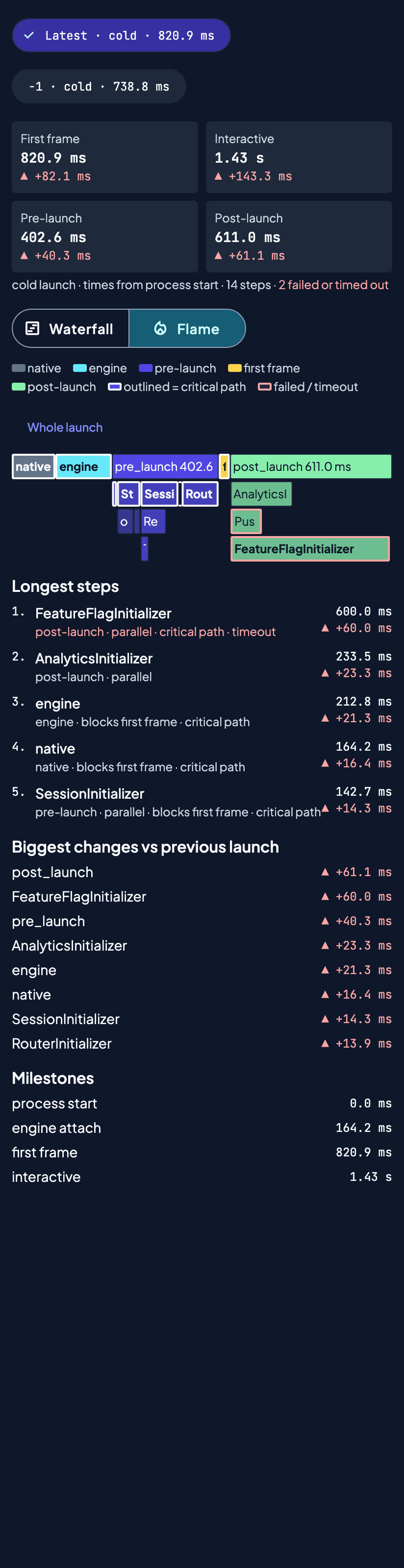
Failed steps have a red outline. Timed-out steps say "timeout". A step can fail and still be swallowed by the app, so look for red even when the app starts fine.
An example
This is one cold launch, drawn as a Gantt chart. It matches the waterfall. Times are in ms from process start.
gantt
  title Cold launch (ms from process start)
  dateFormat x
  axisFormat %L
  section Blocks first frame
  native                       :done, 0, 182
  engine and bootstrap         :done, 182, 424
  DatabaseInitializer (queued) :424, 520
  SessionInitializer (par)     :521, 641
  ThemeInitializer (par)       :521, 565
  Feature SDK sweep (queued)   :641, 713
  first frame                  :milestone, 743, 0
  section After first frame
  Analytics (par)              :760, 971
  FeatureFlags (par, timeout)  :crit, 760, 1311
  interactive                  :milestone, 1312, 0
How to read it:
- The first frame comes at 743 ms. Everything above the milestone blocks it.
SessionInitializerandThemeInitializerrun in parallel. The batch lasts 120 ms, the time ofSessionInitializer. MakingThemeInitializerfaster changes nothing.DatabaseInitializerand the Feature SDK sweep are queued. Each waits for the step before it.- After the first frame,
FeatureFlagstimes out. It does not delay the first frame, but it delaysinteractiveto 1312 ms. It is the longest step, and it is on the critical path forinteractive.
Compare launches
The Launch tool keeps the last 5 launches. It shows the change against the launch before. It also lists the biggest changes by step. Use it after a code change: launch before, launch after, and compare. Compare cold launches with cold launches. A warm launch is always faster.
Next steps
- Launch tracker SDK: how the trace is recorded and its JSON shape.
- app_debugger Launch tool: controls and compare view.
- Blackbox viewer Launch view: the same charts for a recorded session, plus a table.