

Tools
Blackbox
Blackbox is a flight recorder for debug builds. While a session runs, it records what the app and the device did: CPU, memory, frame times and jank, network, battery, thermal state, storage, filesystem changes, app lifecycle, your own events and, if you ask for it, the screen. When the session stops, everything goes into one .bbx file. You open that file in the Blackbox viewer and read every signal on one time axis.
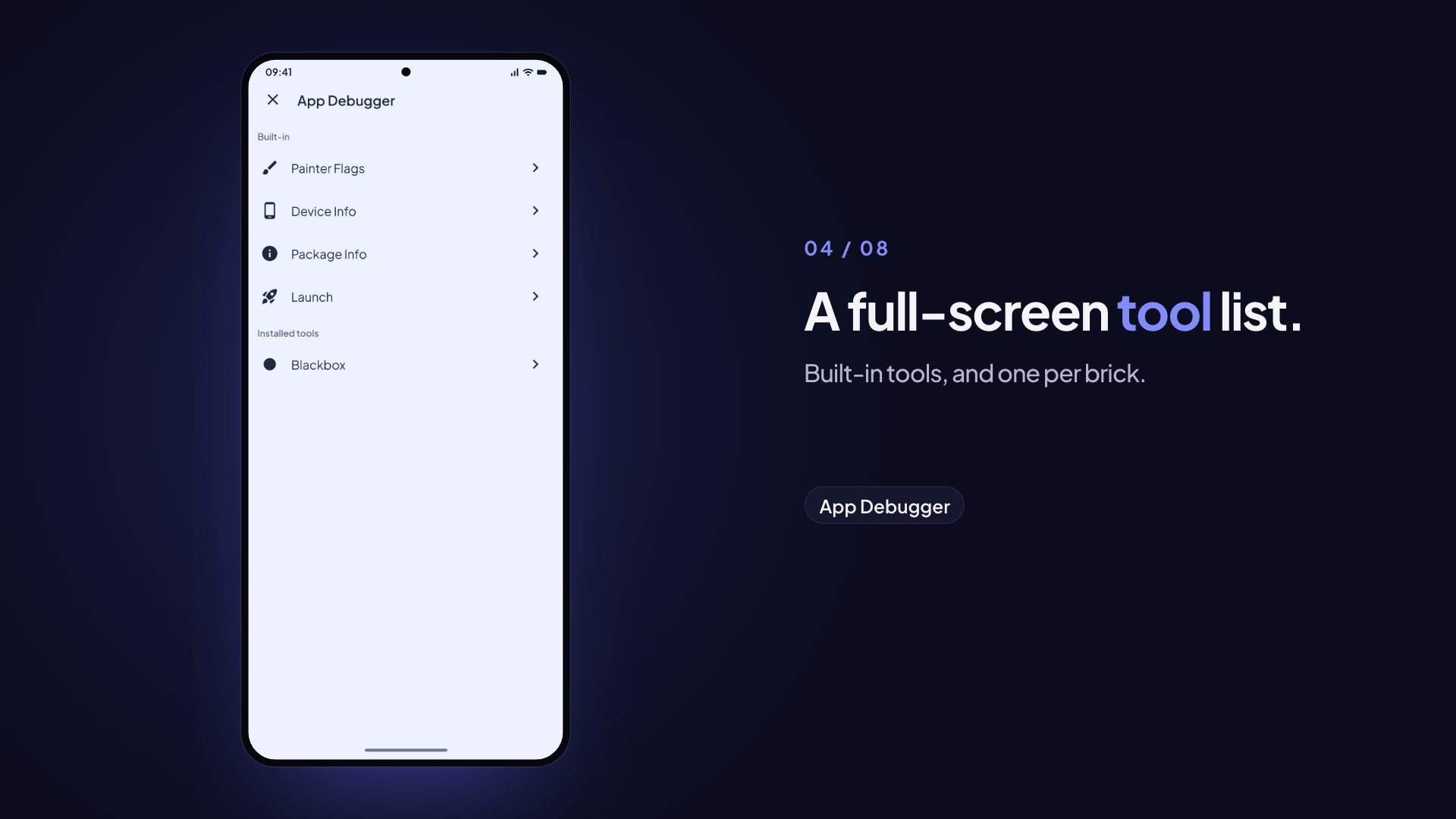
This is the path of one session, from the device to the viewer:
- On the devicerecording in memory
- On your computerno file yet
- In the viewerwaiting for a file
final recorder = getIt<SessionRecorderSDK>();await recorder.start();recorder.captureCustomEvent('checkout_opened', properties: {'items': 3});final archive = await recorder.stop(); // archive.bytes is the .bbx fileFree and Enterprise
| Free | Enterprise | |
|---|---|---|
app_blackbox: the SessionRecorderSDK contract and an inert no-op | Yes | Yes |
app_blackbox_recorder: real recording (metrics, frames, custom events), the Blackbox debugger tool and the floating record control | No | Yes |
app_blackbox_capture: screen recording, filesystem events and the cloud sync uploader | No | Yes |
Open a .bbx file in the viewer | Yes, with any signed-in account | Yes |
| Cloud sync to your own bucket, the session library and Compare versions | No | Yes |
app_blackbox lets app code call getIt<SessionRecorderSDK>() on any tier. On Free, every call does nothing, so you can add events and the screen-recording privacy check now and they start working when you add the recorder.
Install the recorder
archipelago generate app_blackbox_recorder   # metrics, frames, custom events
archipelago generate app_blackbox_capture    # adds screen, filesystem and cloud sync
The recorder needs app_blackbox and app_debugger. If they are missing, the brick generates them first. It also registers the app_blackbox → app_blackbox_noop swap and the metrics plugin (debug_only) in build_prepare.yaml. app_blackbox_capture generates the recorder when it is missing, registers the app_blackbox_capture → app_blackbox_capture_noop swap and its two plugins (debug_only), and adds blackbox.env.json to .gitignore. Without it the recorder works and hides Record screen and Cloud sync.
Production-flavor builds never contain the recorder. Internal flavors (development, staging, alpha, beta by default) keep it, also in release mode, so testers can record sessions. The Fastfile passes the build's flavor for you; by hand, run:
dart run monorepo_toolkit build-prepare --flavor productionThis swaps the recorder for app_blackbox_noop. The production app has no recorder, no native plugins, no capture permissions and no upload token. After the build, build-prepare --check-leaks --flavor production fails if a Blackbox package is still resolved. Run build-prepare --restore to go back. See Build Prepare.
Consent
Recording needs the user's diagnostics consent. Without it, start() refuses and the panel and the control show a short message. If the user withdraws consent, the recorder cancels the running session and deletes the saved sessions and the upload queue.
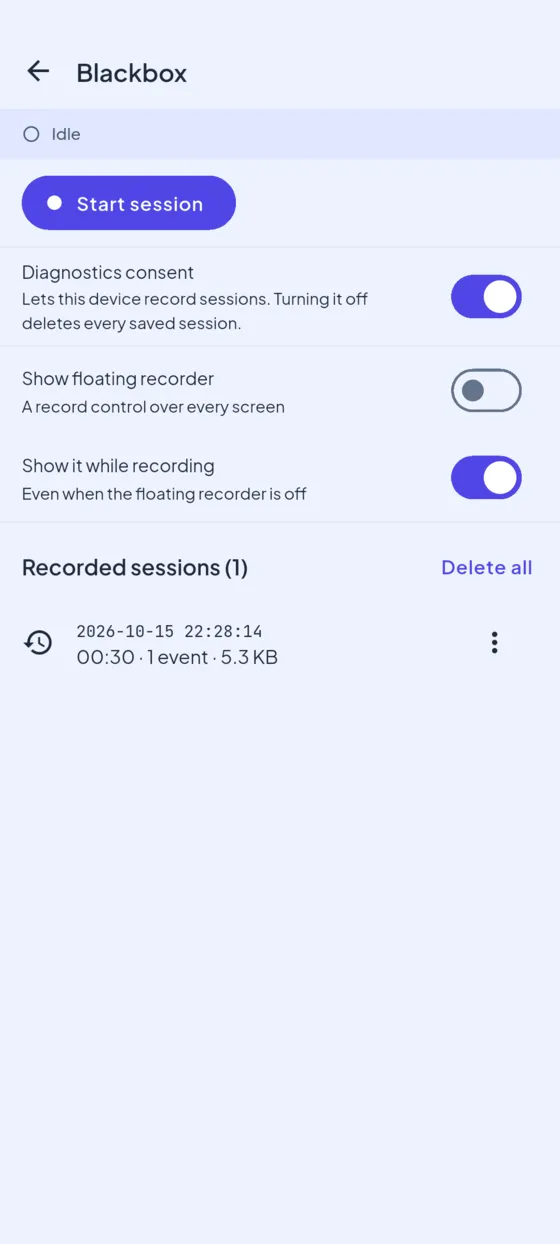
The Blackbox tool has a Diagnostics consent switch. It records the decision through your app's consent gate, so testers can record on any internal-flavor build, also in profile or release mode. Turning it off deletes every saved session. In debug builds you can also grant every purpose with --dart-define=CONSENT_DEBUG_GRANT_ALL=true. Do not grant consent in code.
The recorder needs the shared/consent_api and shared/consent_impl packages and a ConsentInitializer.initialize call in bootstrap.dart. New projects have them. In a project created before consent shipped, app_blackbox_recorder generates them for you with the free shared_consent brick.
Record a session
There are three ways to start a session. All three record the same data.
The Blackbox tool. Open the debugger from the debugger button, then the Blackbox tool. Choose Start and later Stop.
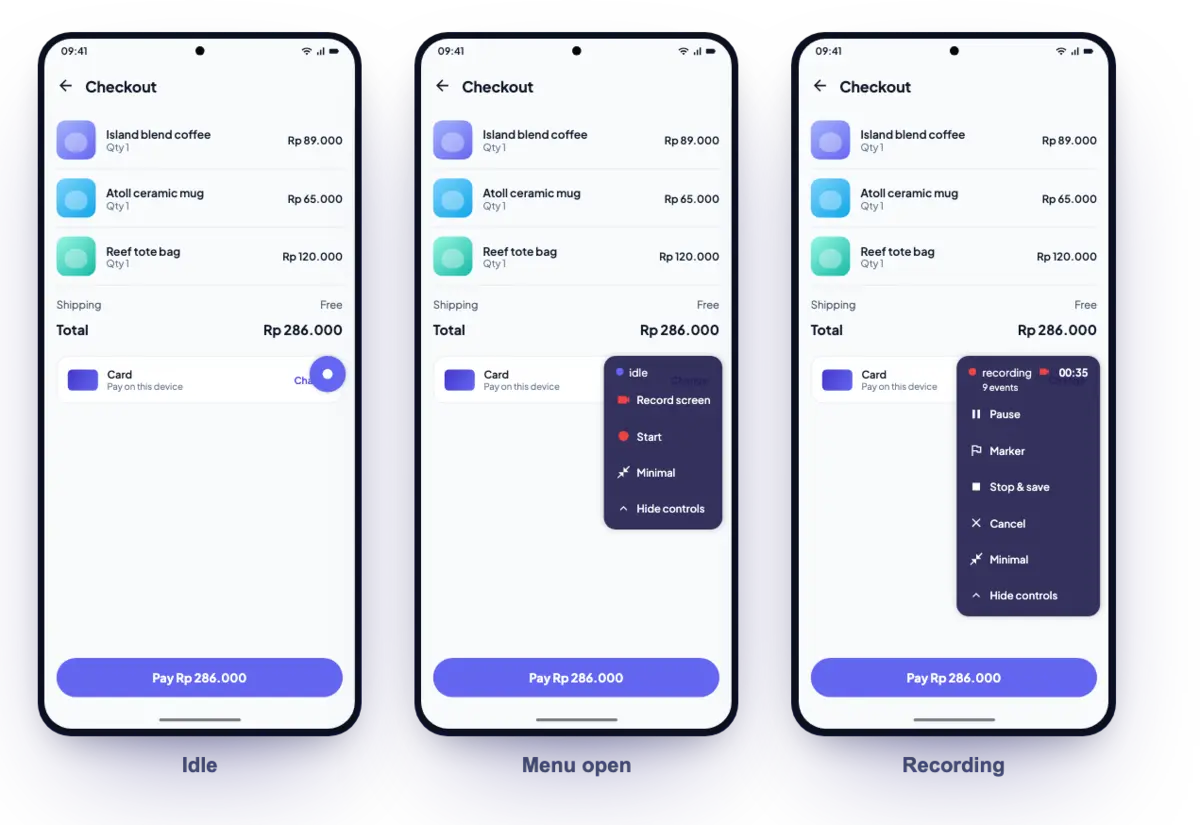
The floating record control. Turn on Show floating recorder in the Blackbox tool. A small dot floats over every screen, so you can record a flow without opening the panel. Tap the dot for Start, Pause and Resume, Marker, Stop & save and Cancel.
Code.
dartfinal recorder = getIt<SessionRecorderSDK>(); await recorder.start(config: const BlackboxConfig(enableScreenRecording: true)); recorder.captureCustomEvent('checkout_opened', properties: {'items': 3}); final archive = await recorder.stop(); // archive.bytes is the .bbx file
Custom events from feature code
A feature package cannot depend on the recorder, and should not read the service locator outside its DI code. It records events through BlackboxEvents in app_blackbox_api instead:
BlackboxEvents.captureCustomEvent(
  'sync.cycle',
  properties: {'changes': 12, 'result': result.name},
);
The recorder attaches itself to BlackboxEvents when DI builds it. An event counts only while a session is recording. In the production flavor the app has app_blackbox_noop, which never attaches, so every call does nothing and none throws.
Send counts, enum names and flags. Never send amounts or personal data: a bundle can be shared off the device. Properties pass your app's telemetry scrubber, and the no_pii_in_telemetry lint checks map literals passed to captureCustomEvent.
BlackboxConfig sets the sample interval, the maximum duration (5 minutes by default), the buffer caps and which signals to record. BlackboxConfig.lightweight samples every 5 seconds and skips frame data, screen recording and snapshots. See the app_blackbox page for every field.
Pause and resume
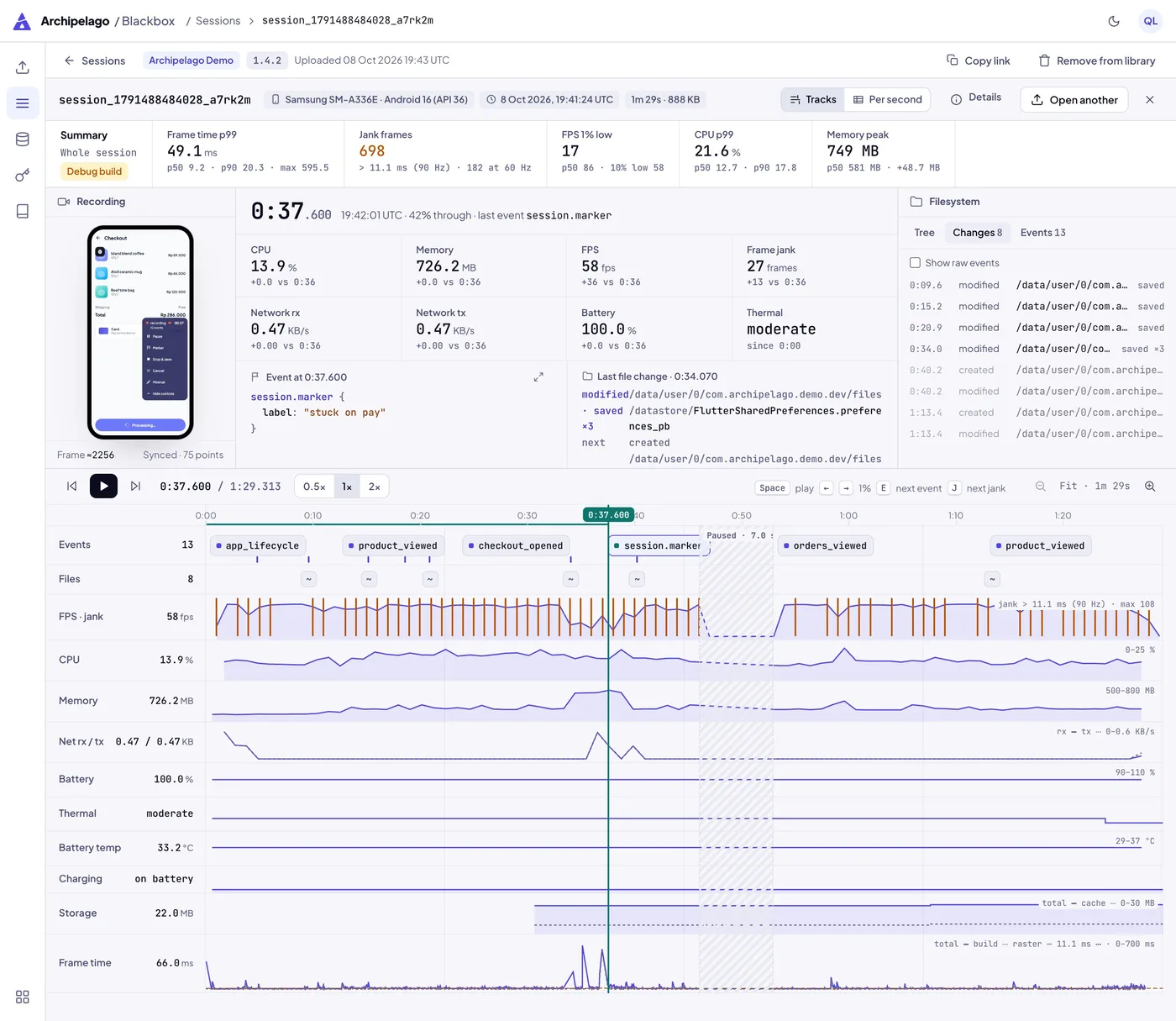
Pause stops every collector. Nothing is recorded while paused: no samples, no frames, no events and no video. The viewer shows each pause as a striped band and leaves paused time out of every summary.
Markers
Marker writes a session.marker event at that moment, so you can flag "the jank happened here" while you test. Long-press it to add a short label. In the viewer, each marker is a flag on the Events track.
Screen recording
Screen recording is off by default. Turn on Record screen in the Blackbox tool or the floating control before you start, or pass enableScreenRecording: true.
- Android shows the system capture prompt at every start and keeps a notification while it records. iOS asks through ReplayKit.
- If the user refuses, the session still runs, without video.
- Other apps and notifications are captured. The recording is of the screen, so another app or a notification that shows during the session is in the video, and masking cannot cover it. The Record screen switch says this. Tell testers before they record.
- After Stop, the Blackbox tool shows a message: saved, saved with video, saved without video and why, nothing to save, or consent withdrawn. The floating control says the same and adds a "Video included" line when the video is in the bundle.
- The video stops after
maxScreenRecordingSeconds(120 seconds by default). The session goes on. - Privacy rule. While
SessionRecorderSDK.isScreenRecordingistrue, your app must hide money amounts and other sensitive values. Read it with aValueListenableBuilder; it is alwaysfalsein production-flavor builds. Keep PIN and lock screens underFLAG_SECURE, so Android captures them as black.
Screen recording needs app_blackbox_capture.
Get the .bbx file
Every stopped session is saved on the device, in app-private storage. The newest 20 are kept. The Blackbox tool lists them with start time, recorded time, event count and size, with Share, Copy path and Delete.
If the device cannot write the bundle (for example, the disk is full), the floating record control shows Failed: and a short reason instead of Saved, and the list shows no entry for that session. stop() still returns the bytes.
To get a file off the device:
Share (any build with the recorder). Tap the row's menu, then Share, and save the file to Files or a drive, or send it to your computer.
Cloud sync (Enterprise). Each session uploads to your own bucket when it stops, and shows up in the viewer's library. See Blackbox cloud sync.
adb (Android debug builds):
bashadb exec-out run-as <applicationId> cat files/blackbox/sessions/<id>.bbx > <id>.bbxrun-asneeds a debuggable build. For an internal release build, setBlackboxHost.storageDirectoryto the external files dir and useadb pull(see Recorded sessions).Code.
stop()returns the bytes. Share or save them however your app likes.
Open a session in the viewer
- Sign in at archipelago.banuacoder.com/blackbox. Any plan works.
- Drop the
.bbxfile anywhere on the page, or choose Choose file.
The file is parsed in your browser tab. It is never uploaded, not to Archipelago and not to your bucket.
The viewer has two views that share one playhead, and a third for the app launch:
- Tracks stacks every signal on one time axis: events and markers, file changes, FPS and jank, CPU, memory, network, battery, thermal state, storage and frame time. The screen recording plays in step with the playhead. The summary strip shows the p99 frame time, jank frames, the FPS 1% low, the p99 CPU and the peak memory.
- Per second shows one row for each second, with the worst value of each signal in that second.
- Launch shows how the app started. See The Launch view below.
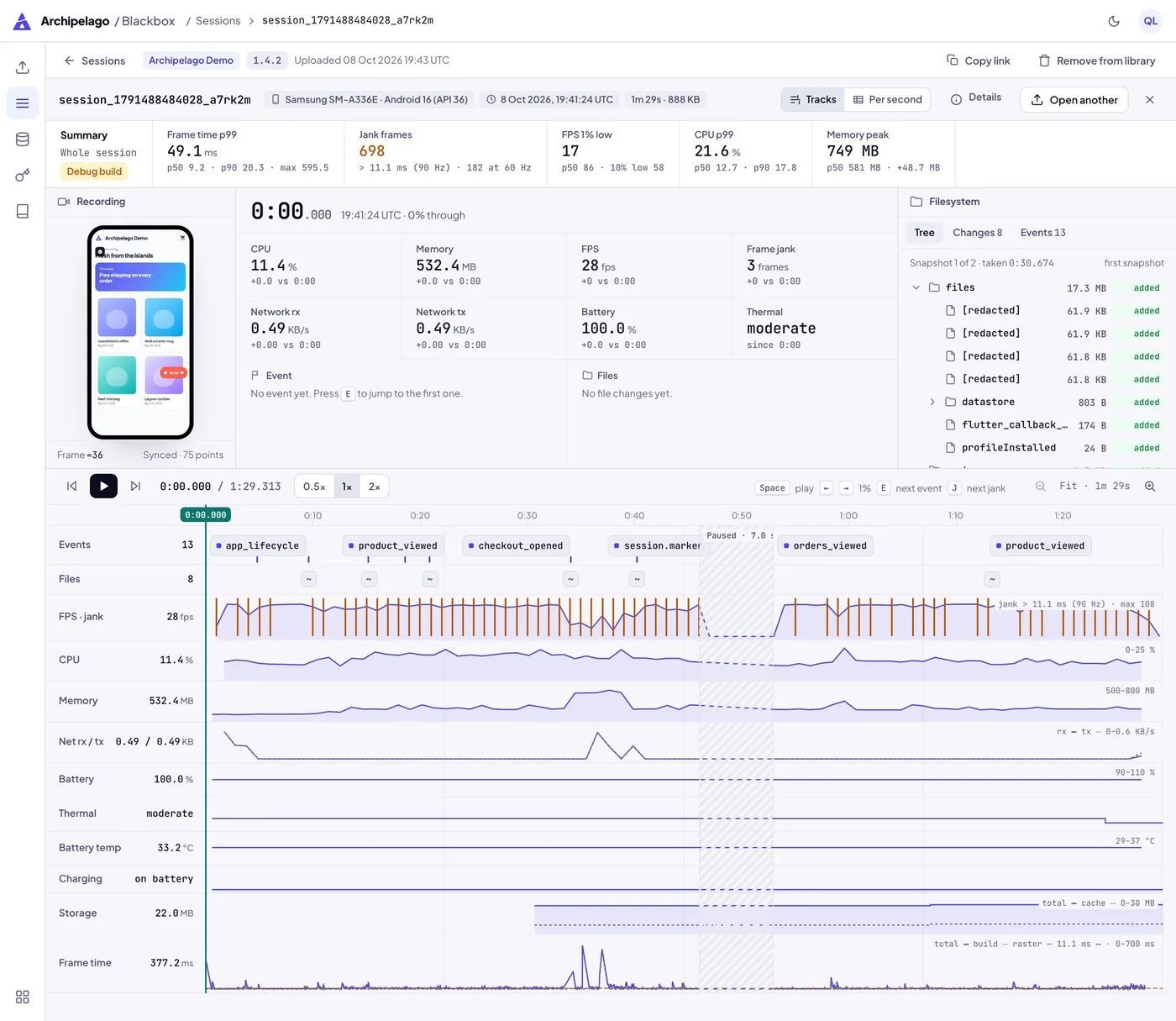
Select an event on the Events track to read its properties in a dialog, and step through the events with Previous and Next.
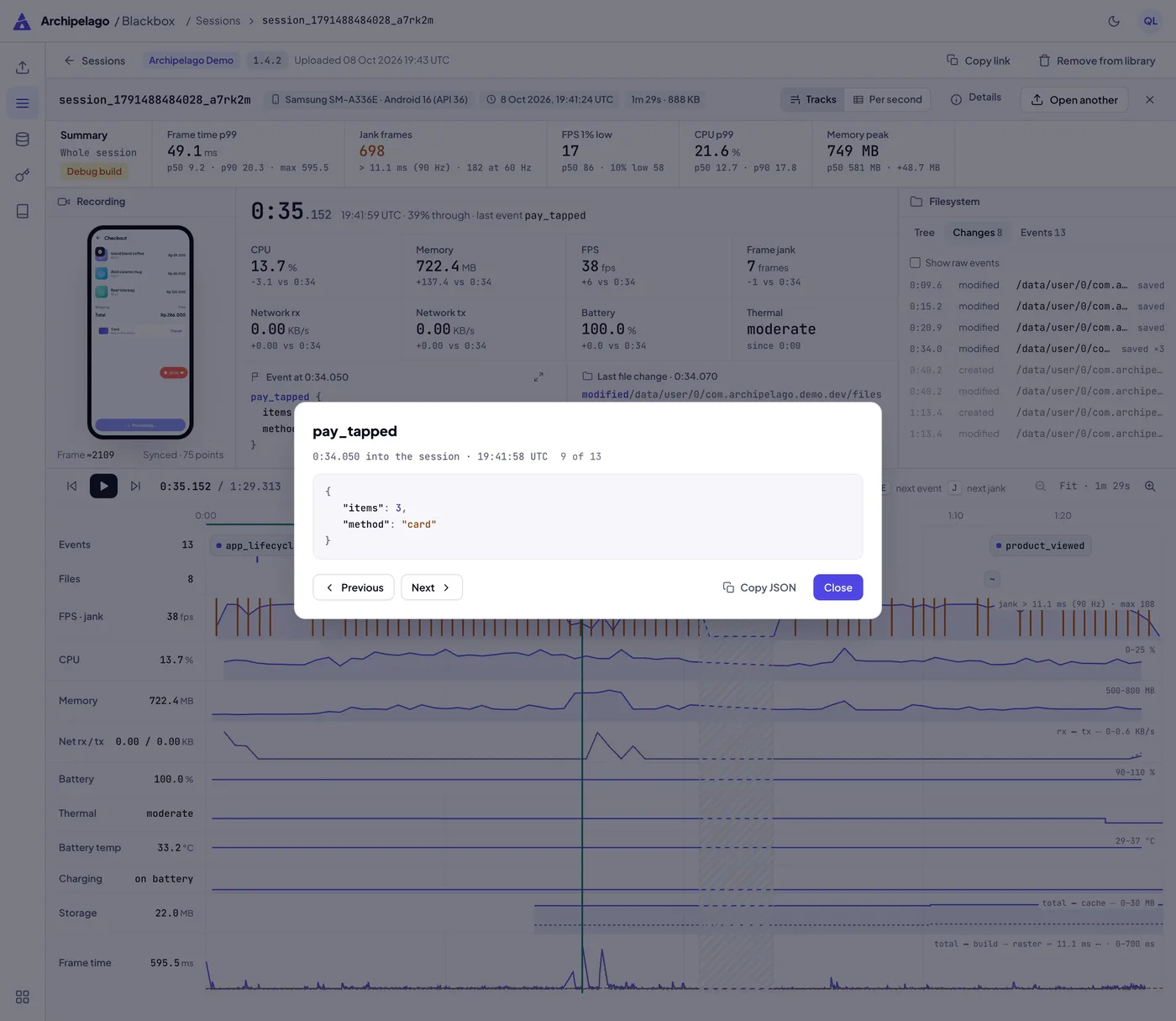
A marker shows as a flag on the Events track, and a pause as a striped band on every track. The playhead sits on the marker here, so the video, the live values and the file changes all show that moment.
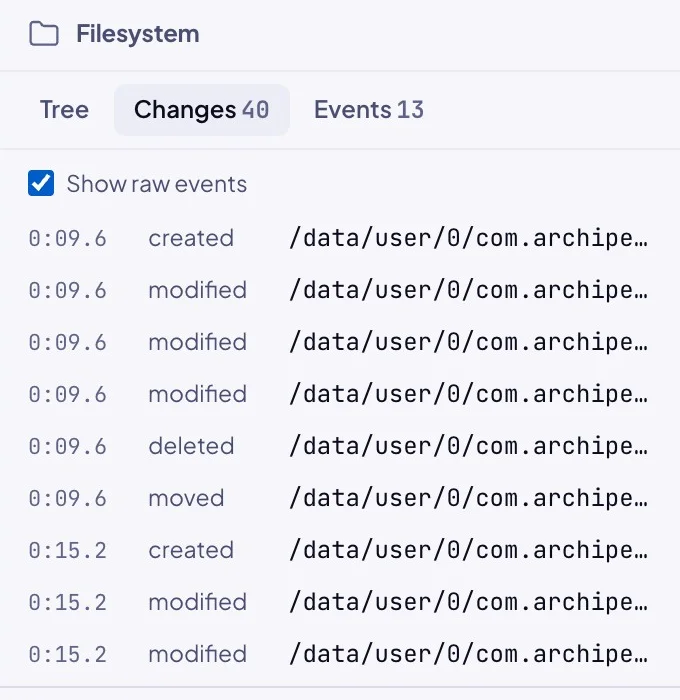
The filesystem panel shows the app sandbox at each snapshot and marks what was added, changed or removed. Its Changes tab lists every created, modified, deleted and moved file with its time.
The Launch view
For a guide to reading the charts, see Read the launch timeline.
When the launch tracker brick is installed, each session from app_blackbox_recorder 2.0.0 or later also carries the launch of the app process that recorded it, as launch_trace.json. The recorder does not depend on the tracker: it reads the trace through its LaunchTraceSource port, which the host app wires to the tracker at pre-launch. The trace is read when the session stops, so a session recorded long after startup still shows that startup. Times count from the process start, not from the session start.
- Waterfall (the default). One row per step, at its real start and length, coloured by phase: native, engine, pre-launch, first frame, post-launch. A solid bar delayed the first frame; an outlined bar ran after it. A bracket groups a parallel batch, labelled parallel ×N. A dashed elbow marks a step that was queued behind the step before it. The solid vertical line is the first frame; dashed lines are the other markers, such as engine attach and interactive. A red cross marks a failed step and an amber hatch a timeout.
- Critical path. The chain of steps the launch actually waited for, worked out backwards from the end. It is on by default and dims everything else, except failures. Shortening a step off this path does not make the launch faster.
- Flame. The same steps nested, each sub-step under the initializer that ran it. Select a block to zoom to it.
- Table. Every step, longest first, with its share of the launch, how it ran and its status. It is the text alternative to the charts.
Select a step in any view to see when it started and ended, what it waited for, whether it delayed the first frame and whether it is on the critical path. The side panel also lists the five longest steps. Zoom with the buttons, + and −, or Ctrl/⌘ and the wheel; Whole launch zooms back out. On the step list, ↑ and ↓ select and Enter zooms to the step.
A session without a trace, from an older recorder or an app without the tracker, shows an empty Launch view that says so. The format is LaunchTrace v1.
The viewer's own Docs page explains every track and every figure, how jank is judged against the display refresh rate, and the full .bbx format.
The .bbx format
A .bbx file is a ZIP of MessagePack entries: session metadata, metric samples, events, filesystem events and snapshots, frame timings, a precomputed summary.json, the app's launch trace as launch_trace.json and, when it ran, the screen recording as recording.mp4. The format only grows by adding things, so old bundles keep opening in new viewers. The recorder page lists every entry and metric unit.
Upgrading
Run the brick again to get a newer version: app_blackbox first when the recorder needs a newer one (its pre_gen says so), then app_blackbox_recorder, then app_blackbox_capture if you use it. A project on app_blackbox_recorder 1.x that records the screen or filesystem, or syncs, runs app_blackbox_capture after upgrading the recorder to 2.x: 1.x generated those packages itself, and 2.0.0 keeps them but stops registering them until then (see Upgrading from 1.x). Each brick keeps a record of the files they generated in .archipelago/generated/. Commit it with the packages.
If you changed a Blackbox package, the run stops before it writes anything, lists the changed, added and deleted files, and prints Nothing was changed. This protects adaptations such as a file you added to app_blackbox_api and exported from its barrel, or your own widgets in the orchestrator. Merge the new version in with git merge-file, or run with ARCHIPELAGO_FORCE=1 to overwrite. A project generated before the record (app_blackbox before 2.10.0, app_blackbox_recorder before 1.20.0) stops once for the same reason. See Upgrading generated packages for the record, the drift stop and the merge steps.
Mason never deletes files. After an upgrade, delete the files the brick CHANGELOGs list as moved or removed. The recorder's post_gen removes the archipelago: manifest that hand-migrated projects kept in the metrics pubspec, because the app_blackbox manifest registers that module.
Related pages
app_blackbox: the contract,BlackboxConfig,BundleStoreand labelsapp_blackbox_recorder: the recorder, the floating control and the bundle formatapp_blackbox_capture: screen recording, filesystem events and cloud sync- Blackbox cloud sync: your bucket, upload tokens and the session library
- App Blackbox tutorial