

Tools
Blackbox cloud sync Enterprise
Cloud sync sends each finished Blackbox recording from a debug or internal-flavor build (alpha, beta, staging) to a bucket that you own. The library at /blackbox lists the sessions and opens them.
This guide takes you from an empty bucket to a session in the library. It needs the app_blackbox_capture brick in your app (it generates app_blackbox_recorder when missing) and an Enterprise plan. For recording itself, and for opening a .bbx file without cloud sync, see the Blackbox guide.
1. How it works
The recording bytes go from the device to your bucket. They never touch Archipelago servers. Archipelago keeps the library entry for 180 days. The entry holds the session id, device, app version, size, duration and the summary figures. The bytes stay in your bucket until you delete them.
sequenceDiagram
  participant D as Device (debug or internal build)
  participant A as Archipelago API
  participant B as Your bucket
  participant L as Library (browser)
  D->>A: 1. upload token
  A-->>D: presigned PUT URL
  D->>B: 2. PUT the .bbx
  D->>A: 3. confirm
  A->>B: HEAD object
  Note over A: library entry saved
  L->>A: 4. open session
  A-->>L: presigned GET URL (5 min)
  L->>B: 5. GET the .bbx
The design has these rules:
- The device holds an upload token. It never holds your bucket key.
- The token can upload to one project. It cannot read, list or delete.
- Archipelago stores your bucket key encrypted and uses it only to sign links and check uploads.
- Archipelago never lists or deletes objects in your bucket. "Remove from library" deletes the library entry only.
- Production-flavor builds carry no token and no uploader. See step 6.
2. Create the bucket and scoped keys
Pick one provider. Create a private bucket. Never enable public access.
Archipelago writes two kinds of object, both under one prefix. The prefix is blackbox in this guide.
<prefix>/<projectKey>/<yyyy>/<mm>/<dd>/<sessionId>.bbx
<prefix>/.archipelago/probe.txt
The key needs two permissions on <prefix>/*: PutObject and GetObject. It does not need ListBucket or DeleteObject.
Amazon S3
- Open the S3 console. Choose Create bucket. Name it, pick a region and keep Block all public access on.
- Open IAM. Create a policy from the JSON below. Replace
BUCKETwith your bucket name andPREFIXwith your prefix. - Create an IAM user for Archipelago. Attach the policy. Create an access key for the user. Copy the access key ID and the secret.
{
  "Version": "2012-10-17",
  "Statement": [{
    "Effect": "Allow",
    "Action": ["s3:PutObject", "s3:GetObject"],
    "Resource": "arn:aws:s3:::BUCKET/PREFIX/*"
  }]
}
Leave the endpoint empty in Archipelago. Use the bucket region, for example ap-southeast-3.
Cloudflare R2
- Open the Cloudflare dashboard. Go to R2 object storage. Choose Create bucket.
- Choose Manage API tokens, then Create API token. Set the permission to Object Read & Write. Scope it to the one bucket.
- Copy the access key ID and the secret access key. Copy the account endpoint, which looks like
https://<ACCOUNT_ID>.r2.cloudflarestorage.com.
In Archipelago, set the region to auto and turn on path-style addressing.
MinIO
- Run MinIO with a public HTTPS endpoint. Archipelago refuses plain HTTP, private addresses and any port except 443. The web operator can allow other TLS ports, for example 9000, with
BLACKBOX_ALLOWED_ENDPOINT_PORTS. - Create the bucket:
mc mb myminio/example-bucket. - Create a user and attach the same policy as the S3 one. MinIO reads the AWS policy format.
- Create an access key for the user.
In Archipelago, set the region to us-east-1 and turn on path-style addressing.
Other providers
DigitalOcean Spaces. Create a Spaces key with access to the one bucket. Use the regional endpoint, for example https://sgp1.digitaloceanspaces.com, and the region sgp1.
Google Cloud Storage. GCS works through its S3 interoperability API. Create a service account. Grant it roles/storage.objectCreator and roles/storage.objectViewer on the bucket. Create an HMAC key for the account. Use the endpoint https://storage.googleapis.com, the region auto and path-style addressing.
No-overwrite check
Every upload URL signs If-None-Match: *, so the bucket refuses to overwrite an existing object. AWS S3, R2 and current MinIO releases support the header. A provider that ignores it still accepts uploads but loses the no-overwrite protection. A provider that rejects it breaks uploads. Spaces and GCS interop are not confirmed yet.
3. Set CORS
Apps upload from native code, so uploads do not need CORS. The library downloads a session straight from your bucket in the browser, and that request needs it. Allow GET and HEAD from https://archipelago.banuacoder.com.
S3, R2 and Spaces. Paste this JSON into the bucket CORS policy. On R2 use Settings, then CORS policy. On S3 use the Permissions tab.
[
  {
    "AllowedOrigins": ["https://archipelago.banuacoder.com"],
    "AllowedMethods": ["GET", "HEAD"],
    "AllowedHeaders": ["*"],
    "ExposeHeaders": ["Content-Length", "Content-Type", "ETag"],
    "MaxAgeSeconds": 3600
  }
]
With the AWS CLI, run aws s3api put-bucket-cors --bucket BUCKET --cors-configuration '{"CORSRules":[…]}' with the same rule inside CORSRules.
Google Cloud Storage. Save this as cors.json. Run gcloud storage buckets update gs://BUCKET --cors-file=cors.json.
[
  {
    "origin": ["https://archipelago.banuacoder.com"],
    "method": ["GET", "HEAD"],
    "responseHeader": ["Content-Length", "Content-Type", "ETag"],
    "maxAgeSeconds": 3600
  }
]
MinIO. MinIO sets CORS for the whole server, not per bucket. Set this variable, then restart MinIO. Or run mc admin config set <alias> api cors_allow_origin=....
MINIO_API_CORS_ALLOW_ORIGIN=https://archipelago.banuacoder.com4. Add a lifecycle rule
Archipelago never deletes objects, so your bucket grows without a rule. Expire the objects under <prefix>/ after 180 days. This matches the 180 days that Archipelago keeps the library entry. A session whose object is gone stays in the library until its entry expires, but it no longer opens.
Archipelago does not create this rule. You own it.
- S3. Bucket Management tab, Create lifecycle rule. Filter by the prefix. Add the action Expire current versions of objects after 180 days.
- R2. Bucket Settings, Object lifecycle rules, Add rule. Filter by the prefix. Delete objects 180 days after they are created.
- MinIO.
mc ilm rule add --expire-days 180 --prefix blackbox/ myminio/example-bucket.
5. Add the connection
Open the library at /blackbox, then choose Storage in the left rail (/blackbox/settings/storage). Fill in the form.
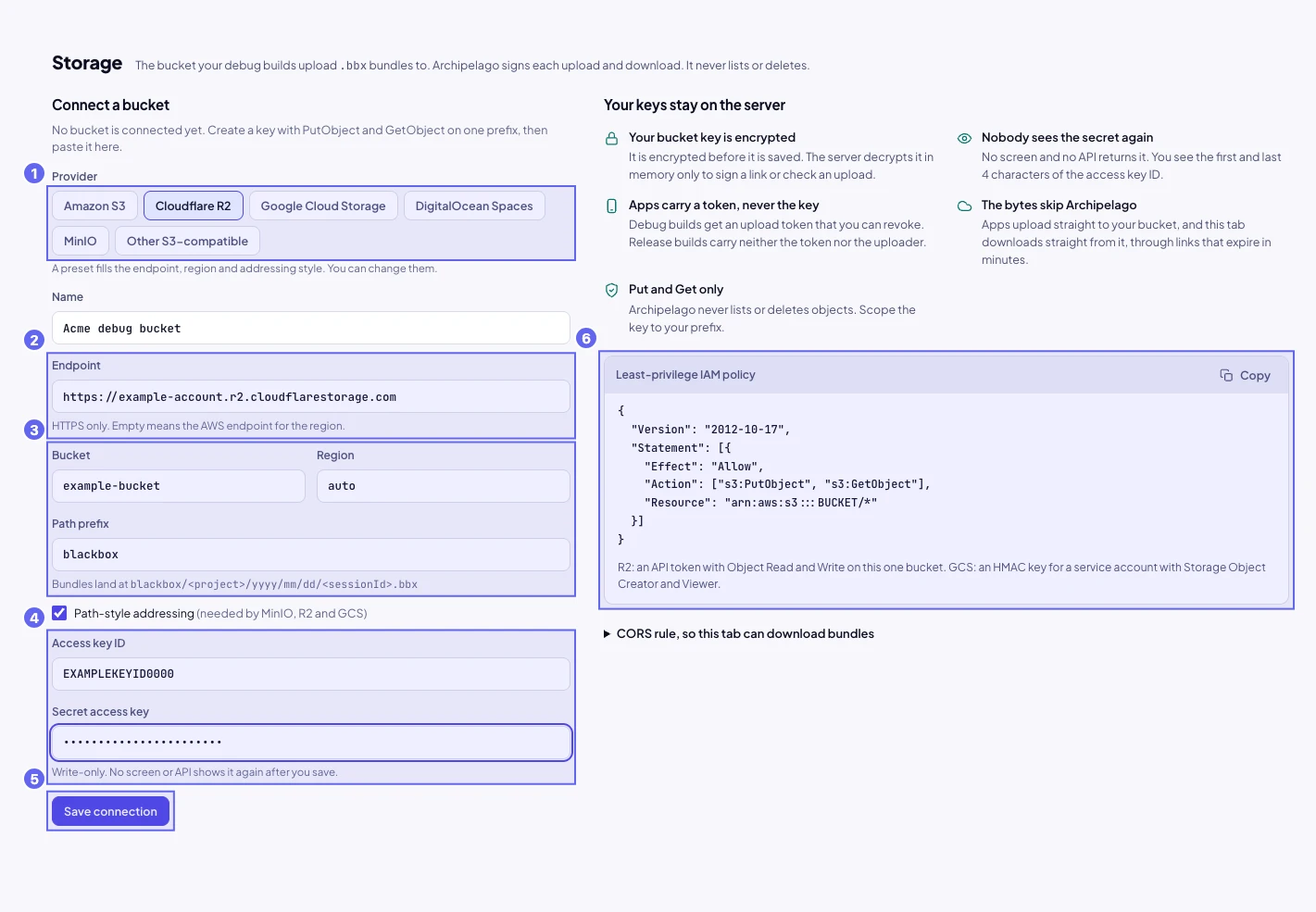
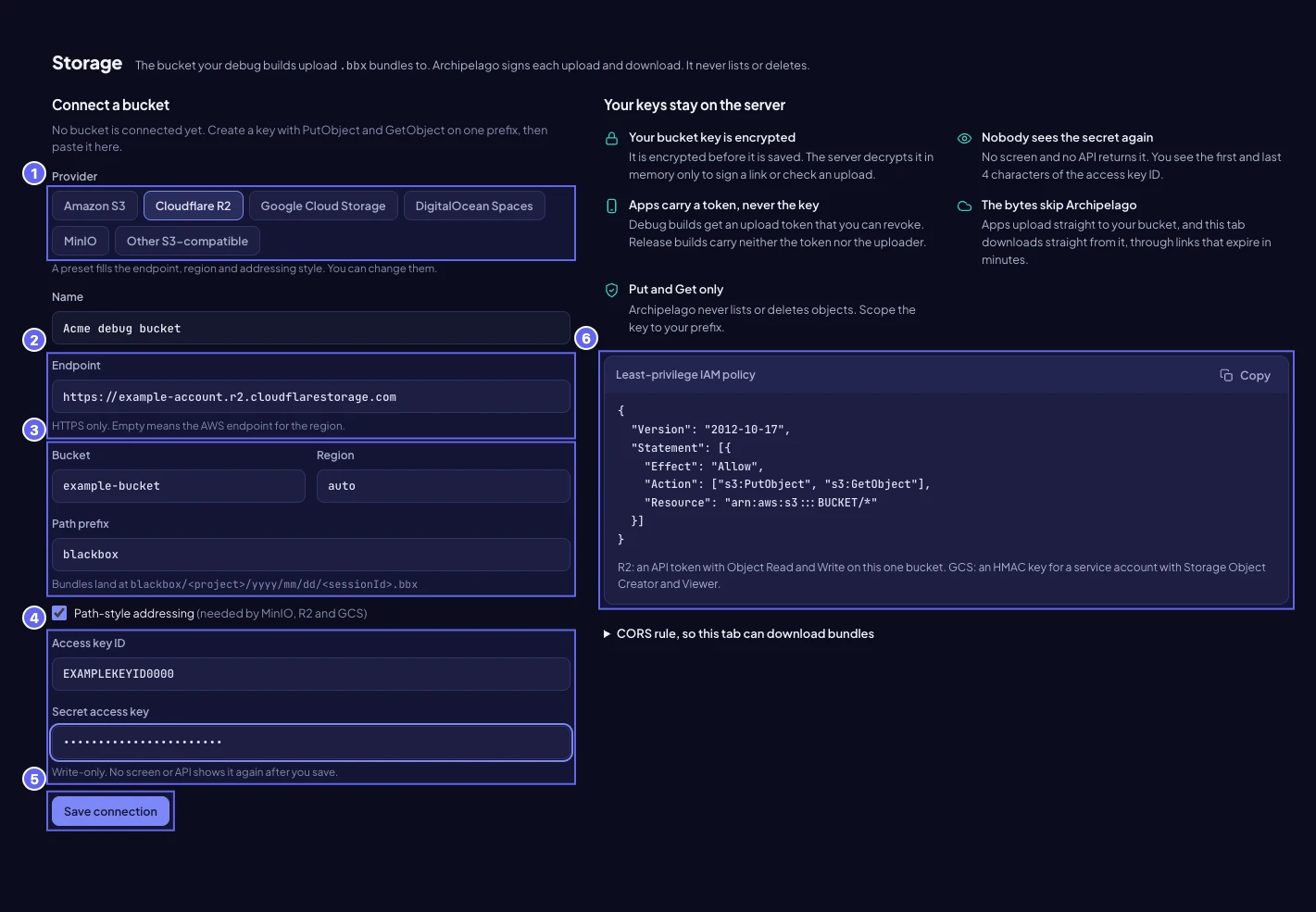
- Pick the provider. The preset fills the endpoint, region and addressing style. You can change them.
- Enter the endpoint. Leave it empty for AWS. Use HTTPS only.
- Enter the bucket, the region and the path prefix. The line under the prefix shows where bundles land.
- Paste the access key ID and the secret. The secret is write-only. No screen or API shows it again.
- Choose Save connection.
- Copy the policy on the right if you have not created one yet. It fills in your bucket and prefix.
Then choose Test connection. The test writes and reads a two-byte probe at <prefix>/.archipelago/probe.txt, then reads it back in your browser to check CORS.
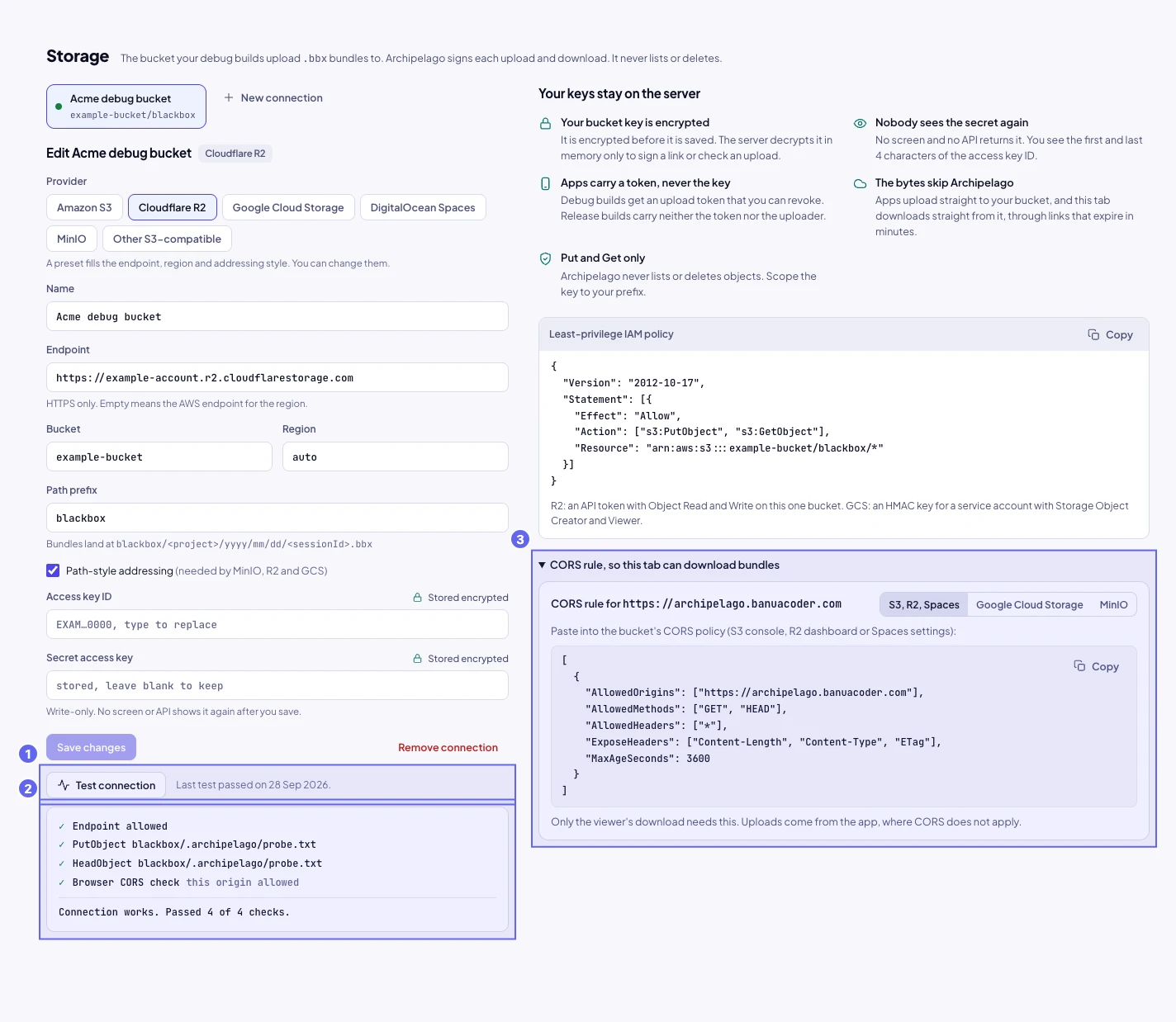
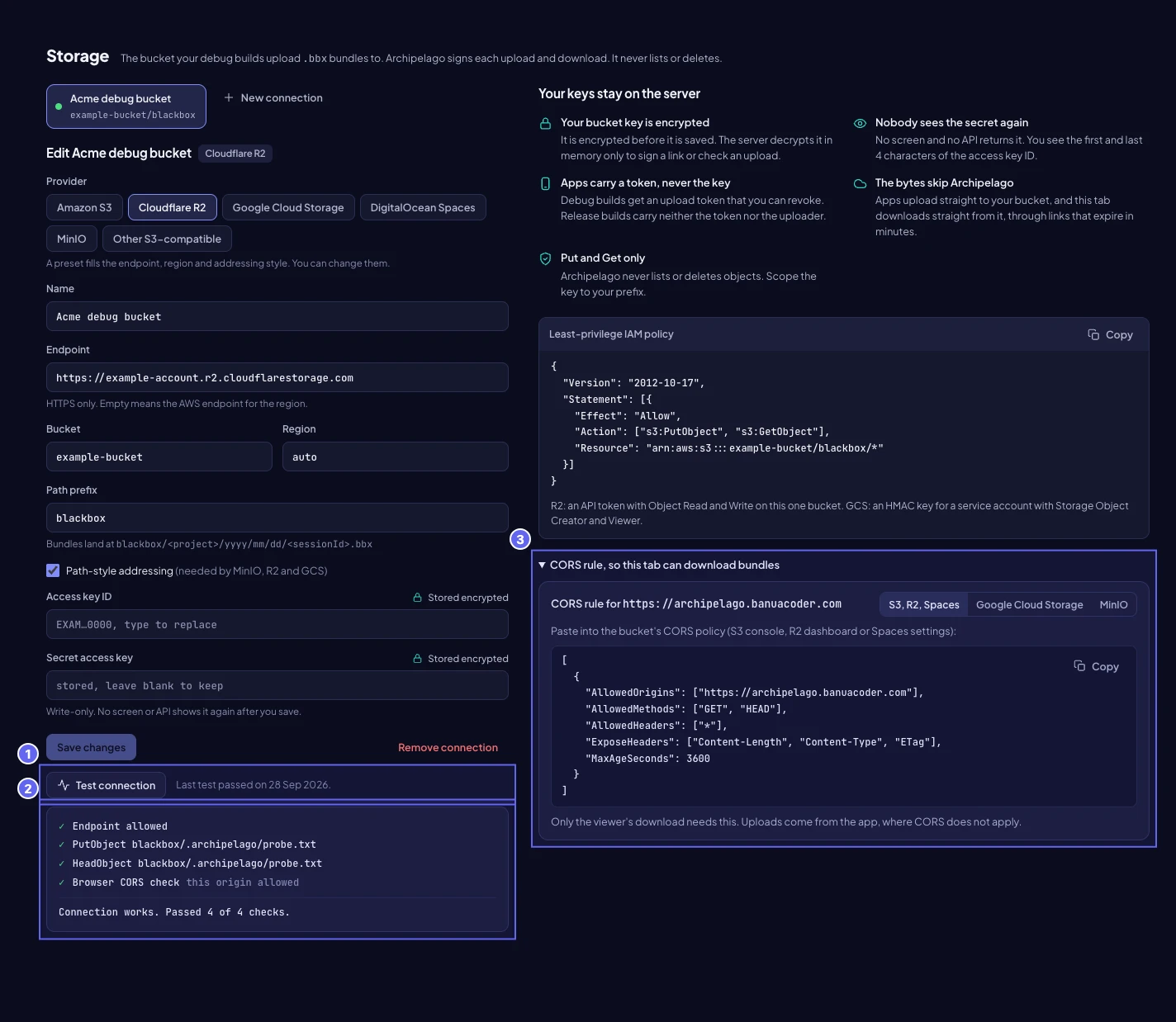
- Run the test. Change the form first, save, then test.
- The four checks: the endpoint,
PutObject,HeadObjectand the browser CORS check. The last one passes when the bucket allows this site. - The CORS rule for your provider, ready to copy.
All four checks must pass. If a check fails, find its code in this table.
| Code | Meaning | Fix |
|---|---|---|
blocked_address | The endpoint resolves to a private, loopback or link-local address, or uses a port that is not allowed. | Use the public HTTPS endpoint of the bucket. Use port 443. |
endpoint_unreachable | Archipelago could not open a TLS connection. DNS, refused connection, TLS error and timeout all give this code. | Check the host and port. Check that the server accepts connections from the internet. |
access_denied | The key is valid but cannot write or read here. | Grant PutObject and GetObject on <prefix>/*. Check the prefix in the policy matches the prefix in the form. |
no_such_bucket | The bucket does not exist for this endpoint and region. | Check the bucket name and the region. Use auto on R2 and GCS. Turn on path-style addressing for R2, GCS and MinIO. |
signature_mismatch | The access key ID and the secret do not belong together, or the region is wrong. | Paste both again. Check the region. |
unexpected_status | The bucket answered with a status Archipelago did not expect. | Check the endpoint, then test again. |
| CORS check fails | The bucket blocks GET from this site. The server checks still pass. | Apply the CORS rule, then test again. |
Other errors that the Storage screen can show:
| Code | Meaning | Fix |
|---|---|---|
connection_limit_reached | You reached the limit of storage connections. | Remove a connection you no longer use. |
connection_in_use | A project still uploads to this connection. | Move the projects to another connection or delete them, then remove the connection. |
6. Create a project and a token, then build
A project groups the sessions of one app. Its key becomes part of every object path. A token belongs to one project.
Choose Projects and upload tokens in the left rail, then New project.
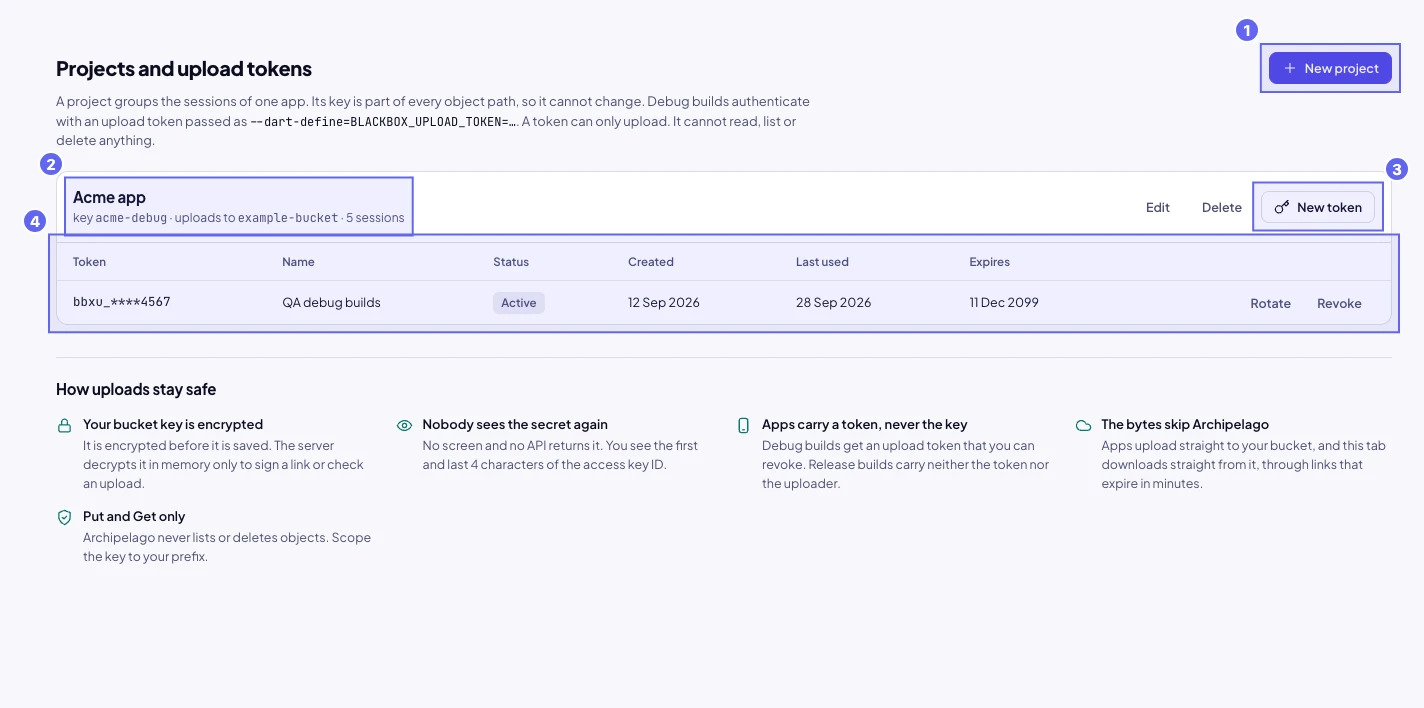
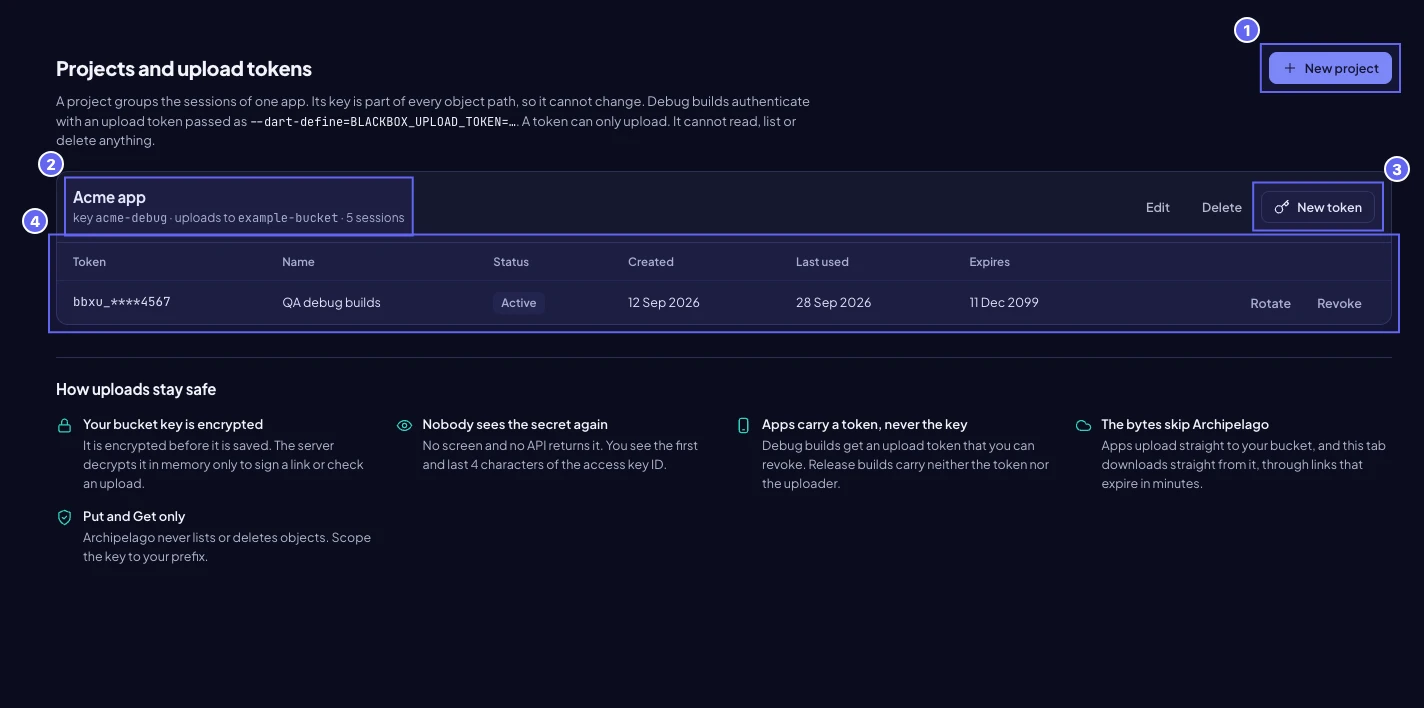
- Create a project.
- The project name, its permanent key and the bucket it uploads to.
- Create an upload token for the project.
- The token list. Each row shows the masked token, its status, the last use and the expiry. Use Rotate and Revoke here.
In the dialog, enter a name, a key and the storage connection. The key must match ^[a-z0-9][a-z0-9-]{1,38}$. It can never change.
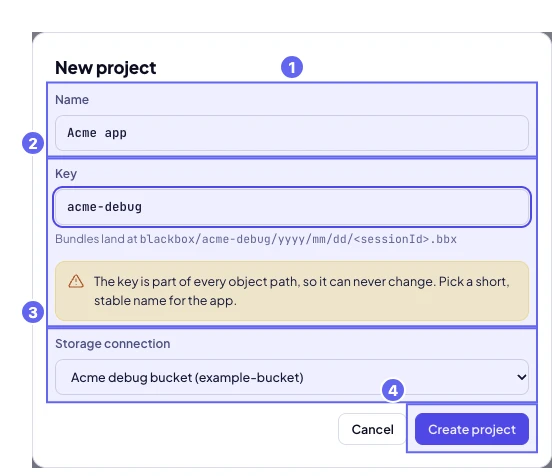
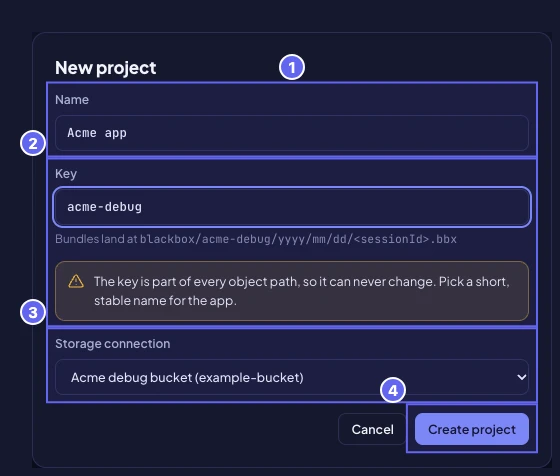
- The project name.
- The key. Pick a short, stable name.
- The storage connection.
- Create the project.
Then choose New token. Name it and pick an expiry: 30 days, 90 days, 180 days or one year. Tokens always expire. The dialog shows the token once.
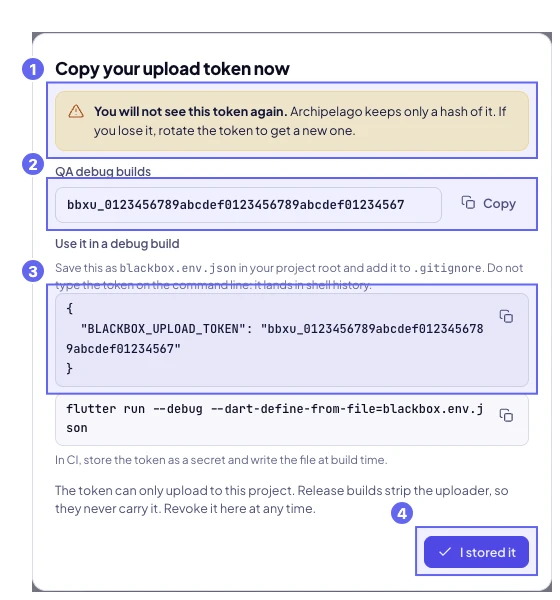
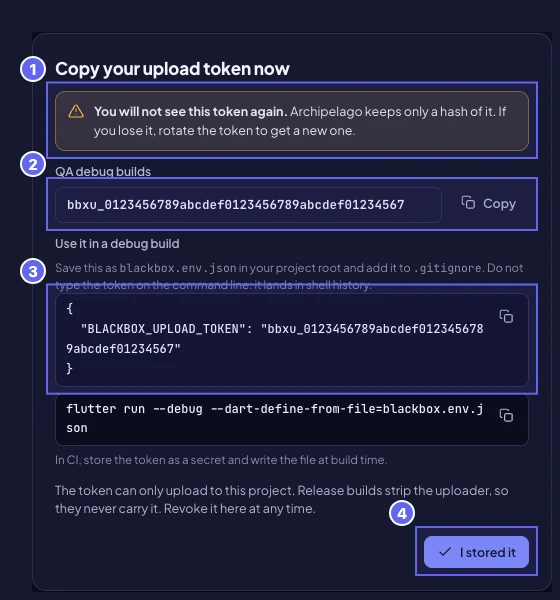
- Archipelago keeps only a hash of the token. If you lose it, rotate the token.
- Copy the token now. It starts with
bbxu_. - The
blackbox.env.jsonbody and theflutter runcommand that reads it. - Choose I stored it after you save the token.
Pass the token to the build
The app reads four --dart-define values.
| Name | Default | Use |
|---|---|---|
BLACKBOX_UPLOAD_TOKEN | none | The upload token. Without it, cloud sync stays off. |
BLACKBOX_SYNC_URL | https://archipelago.banuacoder.com/api/blackbox/v1 | The upload API. Change it only for a local test. |
BLACKBOX_SYNC_WIFI_ONLY | false | Upload on Wi-Fi or Ethernet only. |
BLACKBOX_SYNC_AUTO | true | Upload each session when it stops. With false, sessions wait in the queue until you choose Sync now. |
Do not type the token on the command line. Put it in a file that git ignores.
{ "BLACKBOX_UPLOAD_TOKEN": "bbxu_your_token_here" }Save this as blackbox.env.json in the project root. The app_blackbox_capture brick already added blackbox.env.json to .gitignore; check that it is there. Run the app:
flutter run --dart-define-from-file=blackbox.env.jsonIn CI, store the token as a secret. Write the file at build time. Do not echo it to the log.
# GitHub Actions
# The secret goes in through env, never inlined into the script with ${{ }}.
- name: Write blackbox defines
  env:
    BLACKBOX_UPLOAD_TOKEN: ${{ secrets.BLACKBOX_UPLOAD_TOKEN }}
  run: printf '{"BLACKBOX_UPLOAD_TOKEN":"%s"}' "$BLACKBOX_UPLOAD_TOKEN" > blackbox.env.json
- run: flutter build apk --debug --dart-define-from-file=blackbox.env.json
Use a separate token for each place: one for QA builds, one for CI. Revoke a token when a person or a job no longer needs it. When a refund or an account block ends your Enterprise access, Archipelago revokes every upload token at once. They stay revoked if you subscribe again: create new ones.
Production builds are safe
Production-flavor builds swap app_blackbox for app_blackbox_noop. The noop package has no uploader and never reads the token define. The compiler drops the token from a production build even when a CI job passes the define by mistake. Still, do not pass the token to production builds. Internal flavors (alpha, beta, staging) keep the uploader, also in release mode, so QA builds can upload. Anyone who holds such a build can extract its token, so give each internal build its own token and revoke it when the build is retired.
7. Use the panel and the library
Open the debugger in the app and choose the Blackbox tool. It lists the pending uploads with their status, size, attempts and last error.
- Sync now starts an upload at once and clears a block.
- Wi-Fi only holds uploads until the device is on Wi-Fi or Ethernet. It sets the same value as
BLACKBOX_SYNC_WIFI_ONLY.
The app uploads when a session stops, when the app starts, when it returns to the foreground and on a backoff timer. Files stay on the device until the upload succeeds. Recording needs the diagnostics consent. If the user withdraws consent during an upload, the upload stops and the file is deleted.
Open Sessions in the library.
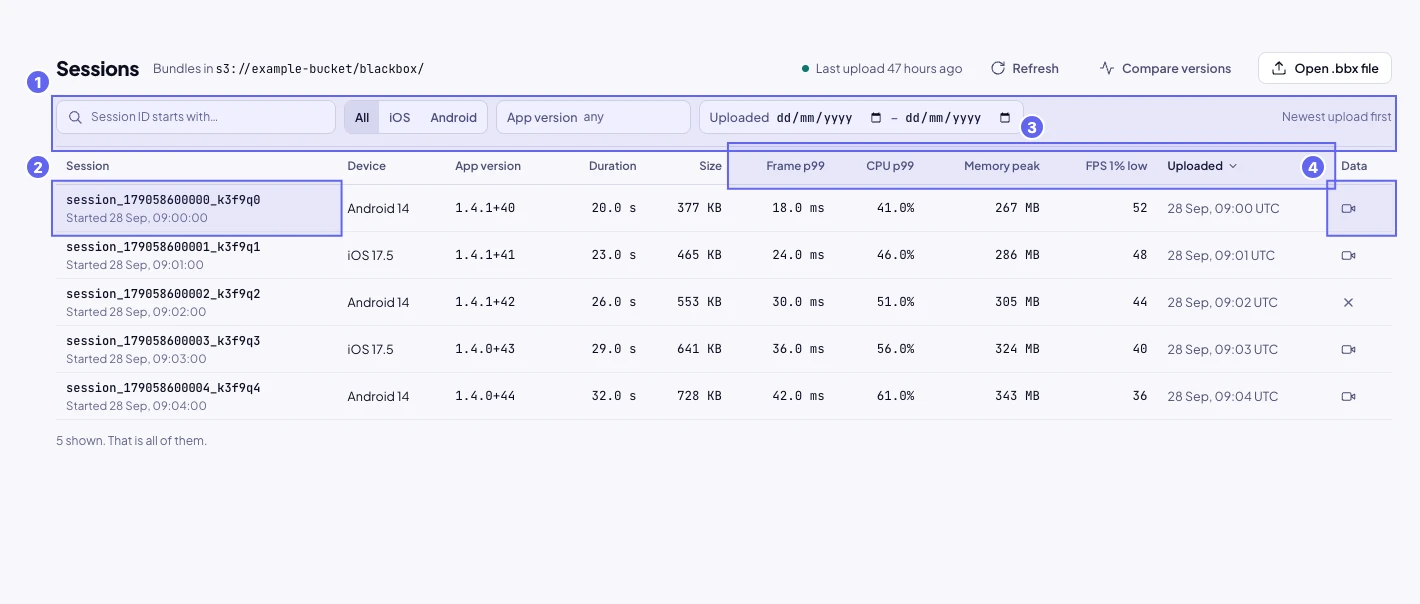
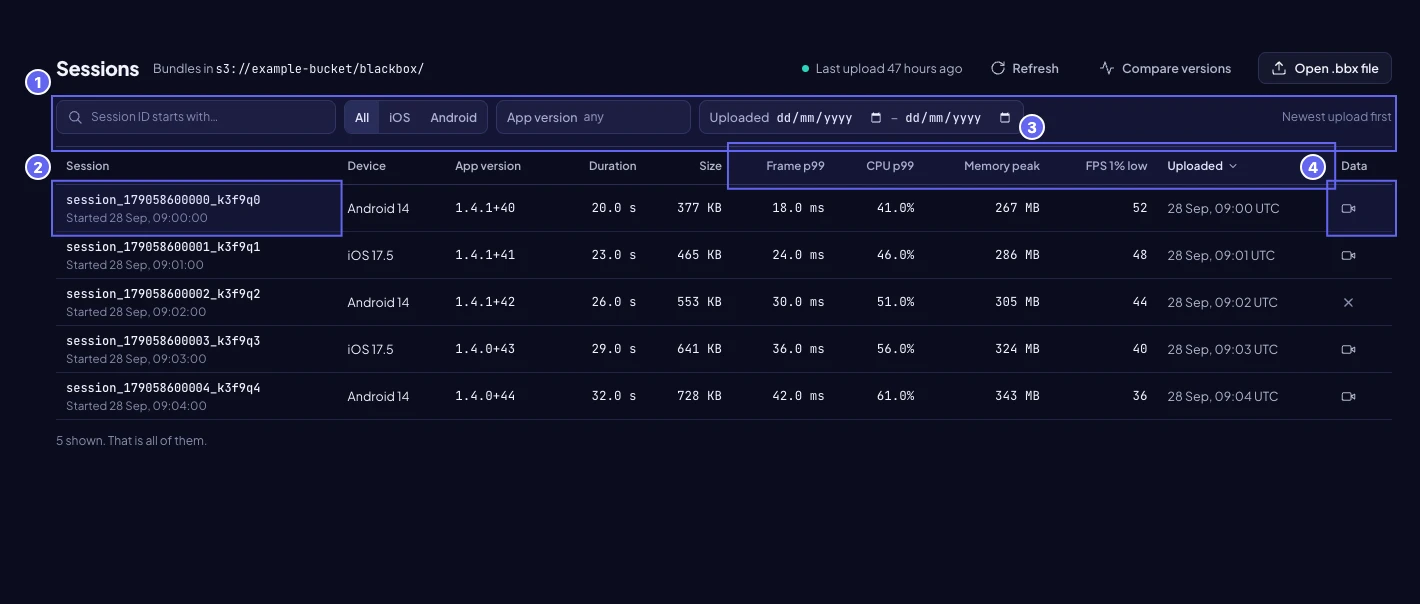
- Filter by project, platform, app version, upload day or the start of a session id.
- Select a session id to open the session.
- The four figures come from the session summary: p99 frame time, p99 CPU, peak memory and the FPS 1% low. The upload time follows them. Select a heading to sort by it. Sort by the upload time to see the newest sessions first.
- The recording icon marks sessions with a screen recording.
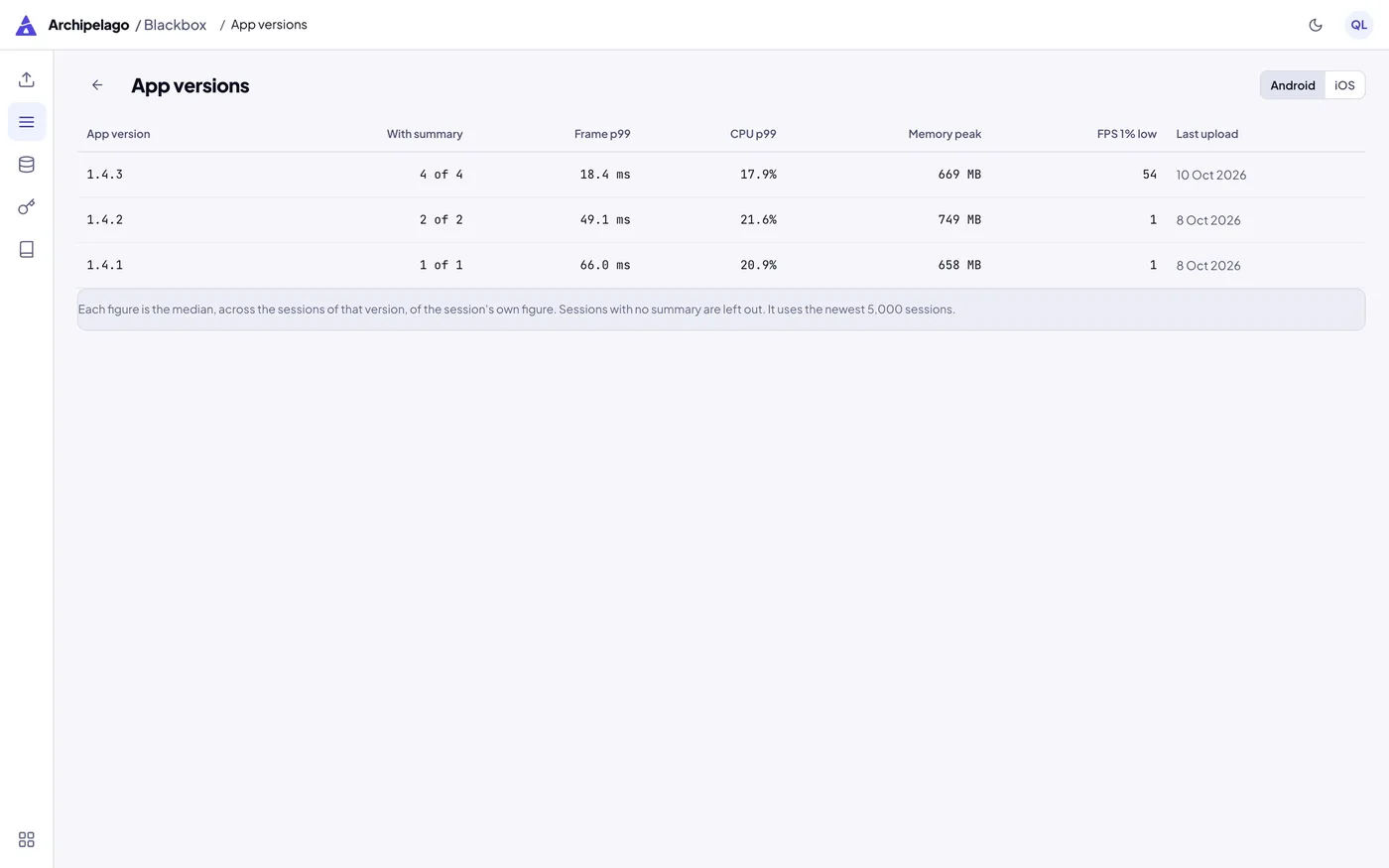
Use Compare versions to see the median of each figure for each app version.
8. Troubleshoot
Errors in the panel
The upload API answers with { "error": "<code>", "message": "...", "retryable": true|false }. The panel shows the code.
| Code | HTTP | What happens | Fix |
|---|---|---|---|
invalid_token | 401 | The app blocks all uploads until it restarts. | Check the token value. Copy it again from the reveal dialog, or rotate the token. |
token_revoked | 403 | Same as above. | Create a new token and rebuild. |
token_expired | 403 | Same as above. | Rotate the token before its expiry date. |
cloud_sync_not_entitled | 403 | Same as above. The panel shows the upgrade text. | Cloud sync needs the Enterprise plan. |
invalid_request, validation_failed | 400, 422 | The item fails. The file stays. | Update the app. The request did not match the API. |
bundle_too_large | 413 | The item fails. The panel shows too_large. The file stays. | The default limit is 250 MiB. Record shorter sessions. |
payload_too_large | 413 | The item fails. | The JSON body was 8 KiB or more. Update the app. |
rate_limited | 429 | The app waits for the Retry-After time, then backs off. | Wait. A project has per-minute limits and a daily upload volume. |
storage_unavailable | 503 | The app backs off and retries. | Check the bucket, the connection and the network. Run Test connection. |
storage_error | 502 | The storage provider rejected the request. | Check the key, the policy and the bucket. Run Test connection. |
upload_not_found, object_not_found, size_mismatch | 404, 409 | The app starts the upload again from the first step. | Wait for the retry. If it repeats, check that nothing else writes to the same path. |
already_uploaded | 409 | The app treats this as success and deletes the local file. | None. |
insecure_url | none | The app refuses an upload URL that is not HTTPS. | Use an HTTPS endpoint. Plain HTTP works only for localhost, 127.0.0.1 and 10.0.2.2. |
wifi_required | none | The item waits for Wi-Fi. | Connect to Wi-Fi, or turn off Wi-Fi only. |
network, http_<status> | none | The app backs off and retries. After the last attempt the item fails. | Check the network. Choose Sync now. |
CORS blocked
The library shows an error when a session opens, or the CORS check in Test connection fails.
- Check that the CORS rule lists
https://archipelago.banuacoder.comwith no trailing slash. - Check that
AllowedMethodshasGETandHEAD. - On MinIO, restart the server after you set the variable.
- Wait a minute. Some providers cache CORS rules.
- Run Test connection again.
Expired link
A download link lasts 5 minutes, and an upload link lasts 15 minutes. If a session fails to open after the page sat idle, reload the page and open it again. An upload that fails with Request has expired gets a new link on the next try.
Missing object
The library reports that the object no longer exists in the bucket (object_missing, HTTP 410). Something deleted the object, most often the lifecycle rule. The library entry stays until it expires. Remove it from the library, or restore the object at the same path.
Token errors
An error 401 means Archipelago does not know the token. An error 403 means the token is revoked or expired, or the plan lacks cloud sync. Rotate the token in Projects and upload tokens. Choose a grace period so builds that carry the old token keep uploading while you roll out the new one.
The file is too large (413)
The server refuses a bundle over 250 MiB (bundle_too_large, with maxBytes in the response). The app marks the item failed and keeps the file. Open the file locally in the viewer with Open .bbx file.
Limits
| Limit | Default |
|---|---|
| Storage connections | 5 |
| Projects | 20 |
| Active tokens per project | 5 |
| Bundle size | 250 MiB |
| Library retention | 180 days |
A limit error uses the codes connection_limit_reached, project_limit_reached and token_limit_reached.